Afrikaans
 العربية
 български
 বাংলা
বাংলা
 Čeština
 Dansk
Dansk
 Deutsch
 Ελληνικά
 English (US)
 Español
 فارسی
فارسی
 Suomi
Suomi
 Français
 עִבְרִית
 हिन्दी
 Bahasa Indonesia
 Italiano
 日本語
日本語
 한국어
한국어
 Latviešu valoda
 Bahasa Melayu
 Nederlands
 Norsk Bokmål
 Polski
 Português
 Русский
 Kiswahili
 Svenska
 ไทย
ไทย
 Türkçe
 Українська
 Tiếng Việt
 简体中文
简体中文
 繁體中文
繁體中文
Adding a Logo to the Branding Area
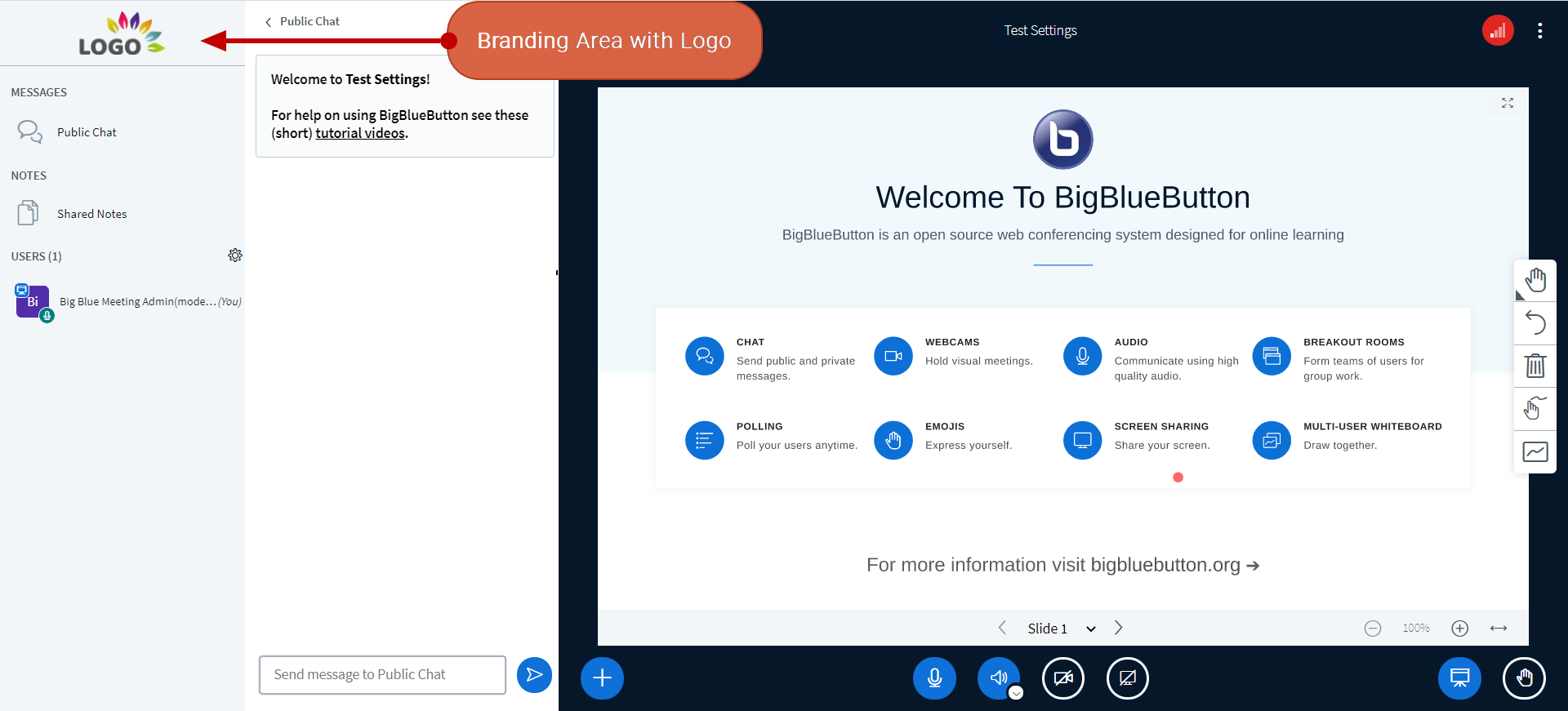
BigBlueButton allows you to add a custom logo to the branding area displayed on the left side of the client interface.
Configuration
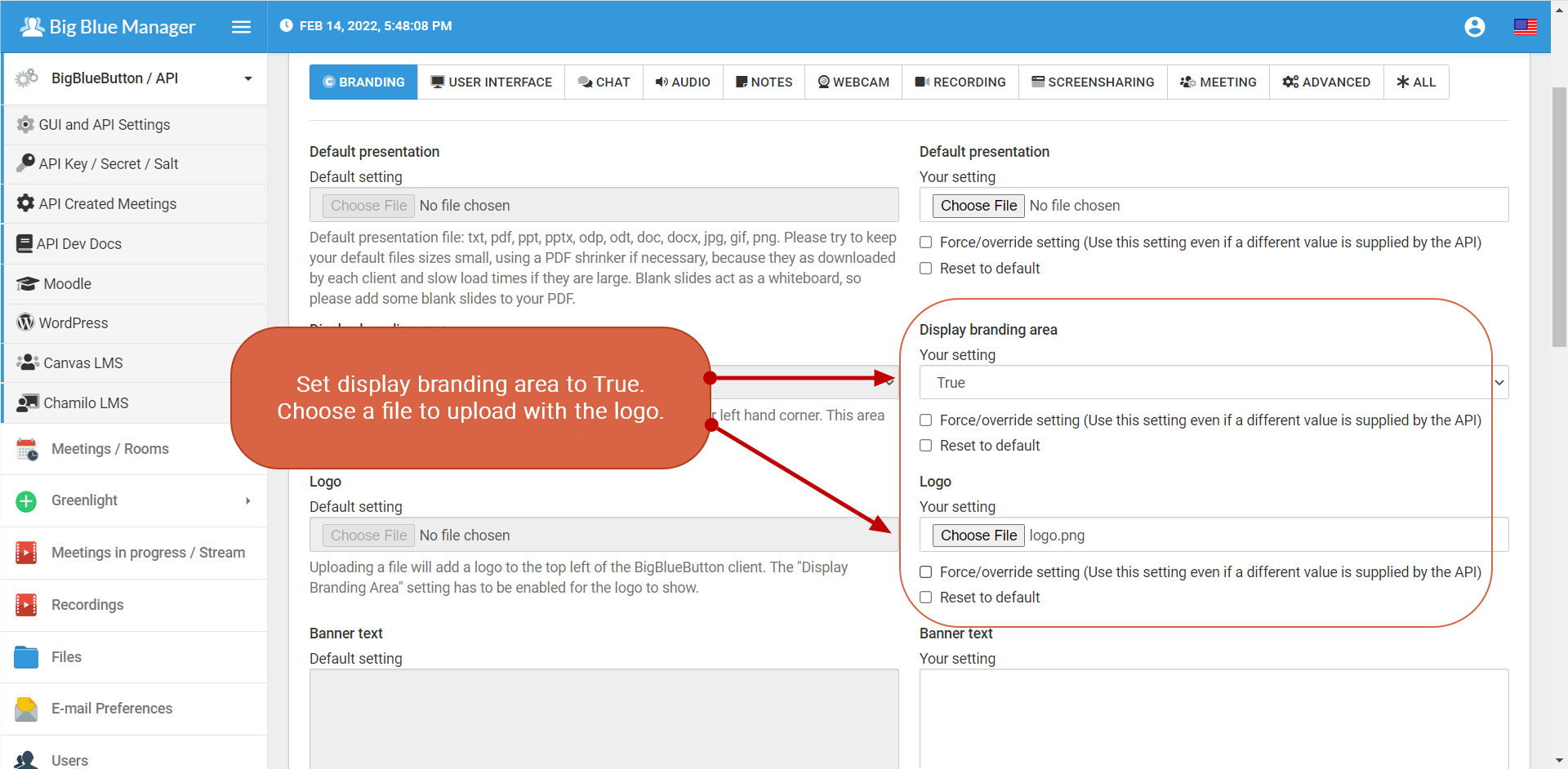
To enable and configure a custom logo in the branding area, update the branding settings within Big Blue Manager.
Adding a Logo
- Log in to your Big Blue Manager account.
- From the left-hand navigation menu, click BigBlueButton / API.
- Select GUI and API Settings.
- Set Display branding area to
True. - Choose the image you want to use as your logo (PNG format is recommended).
- Select the file in the Logo field.
- Click SAVE SETTINGS to upload the logo and apply the changes.
- Use TEST AS USER or TEST AS MODERATOR to preview the updated branding area.