 Afrikaans
 العربية
 български
 বাংলা
বাংলা
 Čeština
 Dansk
Dansk
 Deutsch
 Ελληνικά
 English (US)
 Español
 فارسی
فارسی
 Suomi
Suomi
 Français
 עִבְרִית
 हिन्दी
 Bahasa Indonesia
 Italiano
 日本語
日本語
 한국어
한국어
 Latviešu valoda
 Bahasa Melayu
 Nederlands
 Norsk Bokmål
 Polski
 Português
 Русский
 Kiswahili
 Svenska
 ไทย
ไทย
 Türkçe
 Українська
 Tiếng Việt
 简体中文
简体中文
 繁體中文
繁體中文
Managing Users
Through the Manage Users section, administrators can view, search, and manage all user accounts that have been created on the server.
Administrators can also edit individual accounts using the actions dropdown menu available for each user.
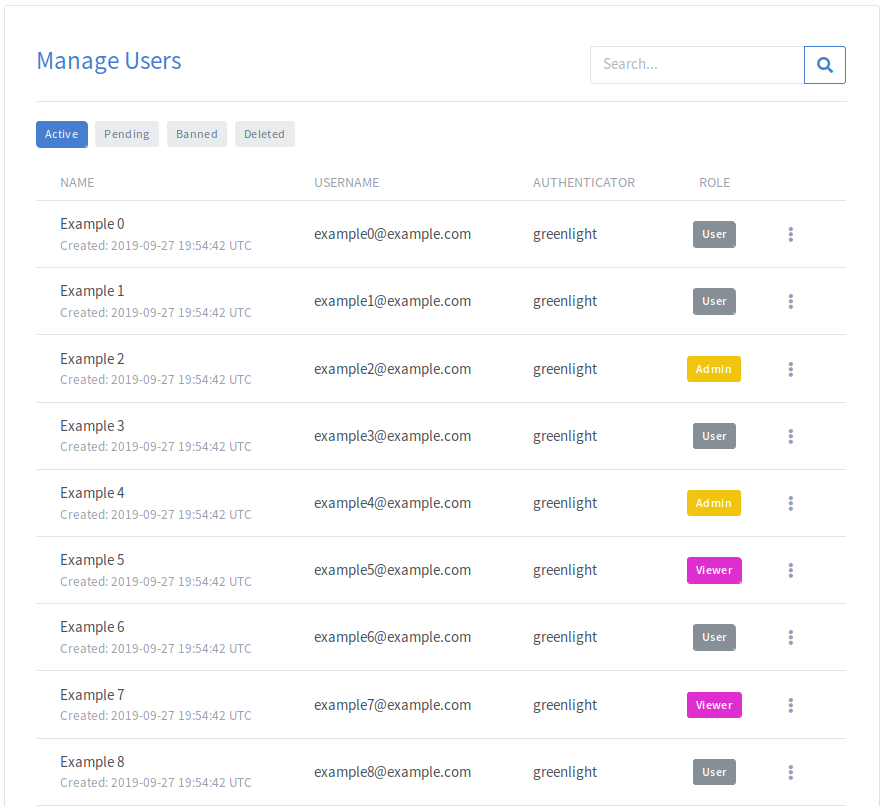
User Tabs
Use the tabs at the top of the page to switch between different account states.

| Tab | Description |
|---|---|
| Active | Users who can currently access Greenlight using their account. |
| Pending | Users awaiting administrator approval before gaining access. |
| Banned | Users who have been denied access or explicitly banned. |
| Deleted | Users whose accounts have been deleted by an administrator. |
Searching and Filtering Users
The search field can be used to locate users by:
- Name
- Username
- Authentication provider
- Account creation date
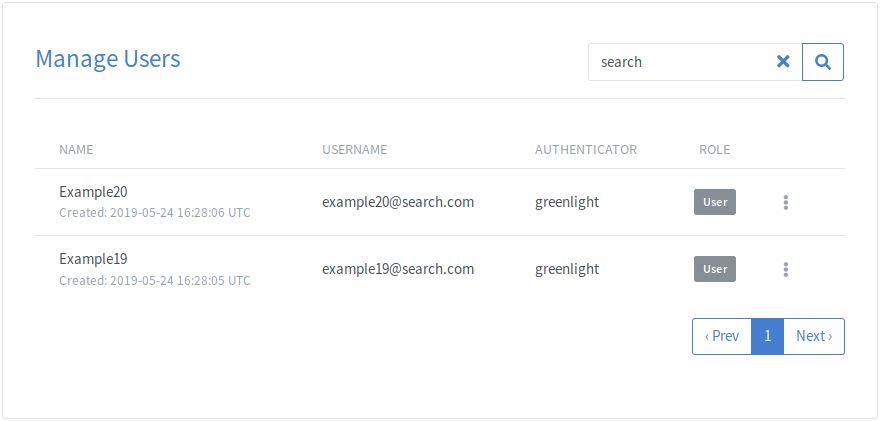
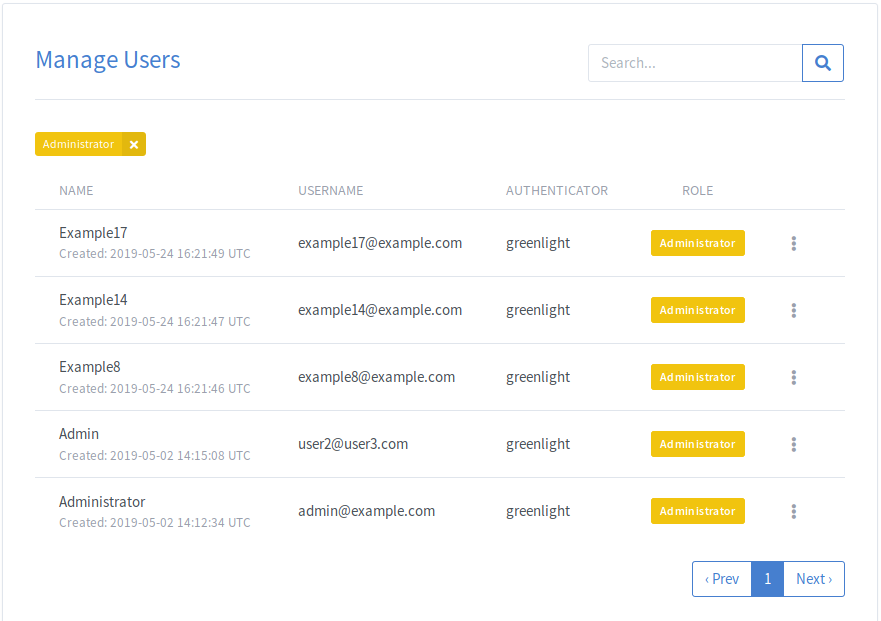
You can also filter users by role. Click any role badge in the Role column to display only users assigned to that role.
Deleting Accounts
To delete an account, select Delete from the account actions dropdown.
Once deleted, the account will be moved to the Deleted tab.
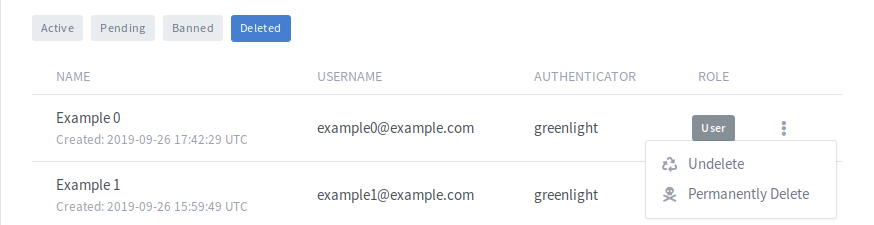
From the Deleted tab, administrators can either restore the account and its associated rooms or permanently remove it from the system.
Permanently deleted accounts cannot be recovered.
Users whose accounts have been permanently deleted can sign up again using the same email address.
Banning Accounts
To ban a user, select Ban User from the account actions dropdown.
Banned users are moved to the Banned tab and can no longer access Greenlight.
Banning also prevents the user from creating a new account using the same email address.
Merging User Accounts
If two accounts need to be consolidated, administrators can use the account merge feature.
During a merge, one account becomes the Primary Account and the other becomes the Account to be Merged.
All rooms belonging to the account being merged are transferred to the primary account. Once the transfer is complete, the merged account is permanently deleted. No other user data is transferred.
To perform a merge, open the account actions dropdown for the primary account and select Merge. You can then search for the account to merge using either the user's name or email address.
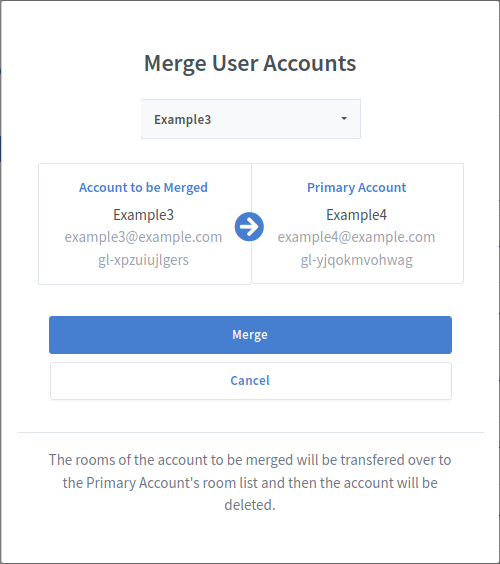
Transferred rooms are automatically prefixed with (Merged). The recipient account can then rename, edit, or delete those rooms as needed.
Editing Accounts
To edit a user account, select Edit from the account actions dropdown.
Administrators can modify the following account information:
- Name
- Email address
- Assigned roles
- Default language
- Profile image
Editing User Roles
User roles can be managed from the account edit screen.
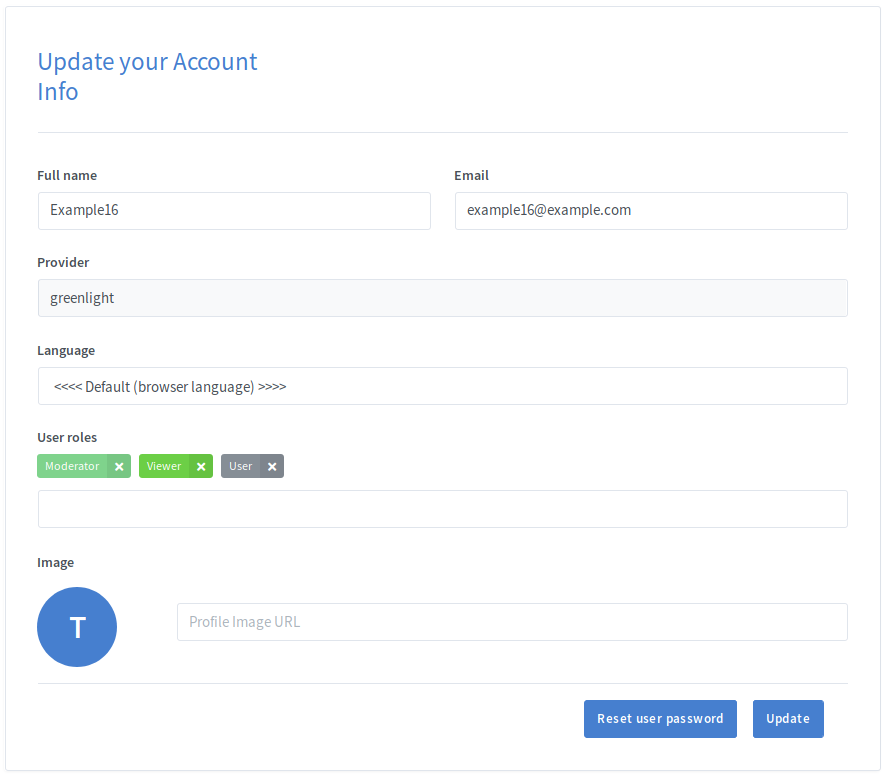
To remove a role, click the x next to the role name. To assign a role, select it from the roles dropdown menu.
Administrators can only assign or remove roles that have a lower priority than their highest assigned role.
Although users can have multiple roles, only the highest-priority role is used when determining permissions.
Resetting User Passwords
If a user forgets their password, an administrator can send them a password reset email.
Open the user's account using Edit, then click Reset user password. Greenlight will send the user an email containing instructions for creating a new password.